100% free · No subscription
Ready to take control?
Download Heart Tracker and start tracking your heart health.
Download on theApp StoreFree to use • iOS 26.0 or later • No account required
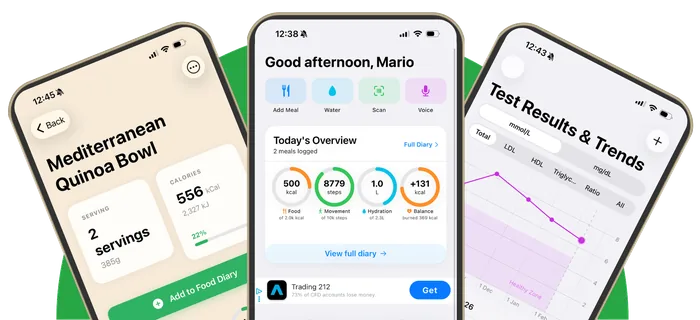
Everything you need to download, set up, and start tracking your cholesterol. This guide walks you through your first 30 minutes with the app.
Taking control of your cholesterol starts with understanding the tools at your disposal. Heart Tracker is designed to be intuitive from day one, but this guide will help you set things up properly so you can focus on what matters: your health.
An iPhone or iPad running iOS 26.0 or later, about 10 minutes of your time, and optionally, your most recent cholesterol test results if you have them handy. Don't worry if you don't have test results yet—you can add them later.
Open the App Store on your iPhone or iPad and search for "Cholesterol Heart Tracker" or simply "Heart Tracker." Look for the app with the heart icon. You can also visit the App Store directly using the download button on our website.
Tap "Get" and authenticate with Face ID, Touch ID, or your Apple ID password. The app is free to download and use—no subscription required. It’s ad-supported, so every feature stays free.
When you first open Heart Tracker, you'll see a welcome screen that explains what the app does. Take a moment to read through it. The app will request permission to send notifications—this is optional but can help remind you to log meals or take medications.
After the welcome screen, you'll go through a quick setup flow to personalize your experience. The app will guide you through each step with clear prompts.
First, you'll enter your first name. This helps the app greet you and makes the experience more personal. Don't worry—this stays on your device.
You'll be asked to enter:
Set your daily step target from preset options: 5,000, 7,500, 10,000, 12,500, or 15,000 steps. This helps the app track your activity progress.
If your BMI indicates you're above a healthy weight range, the app will offer to help you set a weight loss goal. You can choose your target weight and weekly loss pace (Steady 0.25kg, Moderate 0.5kg, or Active 1kg per week), and the app will estimate your timeline.
If you connect Apple Health during setup, many of these fields will auto-populate with data from your Health app. You'll see a small heart icon next to pre-filled fields, and you can still edit any value if needed.
After completing your profile, the app will show you a 5-page interactive tour explaining the key features. This helps you understand what's available before you dive in.
You can swipe through these pages or skip the tour entirely if you prefer to explore on your own. Don't worry—you can always revisit features through the app's intuitive interface.
This tour only takes a minute and gives you a solid overview of what Heart Tracker can do. Even if you skip it during setup, you'll discover these features naturally as you use the app.
During setup or later from Settings, you can connect Apple Health to create a complete picture of your health. This is optional but highly recommended for the best experience.
The app can access and display:
When you tap "Connect Apple Health," iOS will show you Apple's standard permission screen. You can toggle individual data types on or off—Heart Tracker will only access what you explicitly allow. You can always change these permissions later in the iOS Health app under Privacy → Apps.
That's completely fine. Heart Tracker works perfectly well without it. You can still track cholesterol, log meals, and get personalized insights. Apple Health integration just adds extra context with workouts, sleep, and heart rate data to help you see the bigger picture.
If you have recent cholesterol test results, now is a great time to log them. This gives you a baseline to track against as you make lifestyle changes.
The app automatically calculates two additional metrics based on your inputs:
Your cholesterol numbers are typically in a lab report from your doctor or available through your healthcare provider's patient portal. They're usually labeled clearly as Total Cholesterol, LDL, HDL, and Triglycerides.
No problem. You can start tracking meals and lifestyle factors right away. When you get your next blood test, you'll have weeks or months of data showing how your diet and activity have changed—valuable context for your doctor.
Now that you're set up, familiarize yourself with the five main sections. Each tab is accessible from the bar at the bottom of the screen.
Your dashboard shows today's summary with quick action buttons:
Below the buttons, you'll see today's nutrition overview, an article spotlight, and quick links to explore foods and view test results.
Your complete meal history with daily or weekly view options. See all logged meals grouped by type (Breakfast, Lunch, Dinner, Snacks), water intake, workouts from Apple Health, and nutrition analysis cards showing how your food choices affect your health.
Search and explore with three main sections:
View your cholesterol data with an interactive chart (select different metrics to view), your most recent test summary, AI health insights, the last 3 test results, health vitals from Apple Health, and data export options (CSV, JSON, PDF).
Manage your profile, set display preferences (Light/Dark mode), adjust goals, enable meal reminder notifications, control Apple Health sync, and export your data. You can update any setup information here.
The best way to learn is by doing. Let's log your next meal to get comfortable with the process.
For packaged foods, tap the camera icon from the Home tab. Position the barcode within the frame, and the app will automatically detect it. You can also manually type a UPC code if needed. The app fetches product information from Open Food Facts, shows you the nutrition details, and lets you choose your serving size before saving.
Tap "Add Meal" from the Home tab or visit the Discover tab. Use the search bar to find foods from the 4.5 million-item database. Results show food names, serving sizes, calories, and macros. Tap "Add to meal" to log the item.
Voice entry works best with clear, common food names. Instead of "my grandma's famous casserole," try "chicken casserole with rice and vegetables." You can always edit entries afterward to get them exactly right. The AI learns what foods you eat regularly and gets better over time.
Now that you're set up, your job is simple: keep tracking. Log meals as consistently as you can. The more data you provide, the better Heart Tracker can help you understand patterns in your eating and how those patterns affect your cholesterol.
Within a few days, you'll start seeing daily summaries and weekly trends. Within a few weeks, you'll have enough data to spot patterns—maybe you eat more saturated fat on weekends, or you notice that certain foods consistently put you over your targets. These insights are what help you make lasting changes.
Building a tracking habit is easier with reminders. In Settings → Notifications, you can enable meal reminders for breakfast, lunch, dinner, and snacks. Set specific times for each, and the app will send you a gentle notification—but only if you haven't already logged that meal type for the day. Most people find this helpful in the first few weeks until tracking becomes automatic.
Make sure you've granted Heart Tracker permission in the Health app. Open the Health app, tap your profile picture, then "Privacy" and "Apps." Find Heart Tracker and toggle on the data types you want to share.
The database has millions of foods, but occasionally something is missing. Try searching with different terms or use a similar food as a stand-in. You can also create custom foods in Settings if you eat something regularly that isn't in the database.
Speak clearly and use common food names. Instead of "my grandma's special lasagna," try "lasagna with meat sauce." The AI works best with straightforward descriptions. You can always edit entries after they're logged.
Schedule a conversation with your doctor. They'll consider your age, family history, existing conditions, and overall cardiovascular risk to determine appropriate targets. General guidelines are a starting point, but personalized targets are always better.
You're ready to start tracking. As you get comfortable with the basics, explore the other guides to learn advanced features like creating recipes, understanding your cholesterol trends in depth, and interpreting the AI insights that will help guide your health decisions.
UP NEXT
Master voice entry, barcode scanning, and recipe creation.
Download Heart Tracker and start tracking your heart health.
Download on theApp StoreFree to use • iOS 26.0 or later • No account required